
How to Make a Burning Bridges AI Video from One Photo
Make a Burning Bridges AI video from one photo. Follow the portrait tips, check the party sample and video price, then download and prepare your clip to post.
Last updated: 2026-10-17
One clear portrait is enough to start your own chandelier-party performance. You do not need to film the gestures, find a reference video or write a prompt. Our prepared reference supplies the wave, cup toast and hand-over-eyes searching moment; your photo guides the lead performer.
Open the Burning Bridges AI video generator to prepare your photo, or watch the recorded input and result first. This is an independent, trend-inspired tool: the reference is original, and the download includes neither the official music video nor Drake’s song.
For measured file specifications and the limitations of our recorded Wan and Pruna results, read the example test notes.
Before you make a Burning Bridges AI video
The current recipe uses Wan 2.7 Video Edit through APIMart. It creates a 10-second, 720p, 16:9 / 9:16 MP4 with no song. 20-second clips and 1080p are not available in this recipe.
Buy 1 video for $5.99, 3 for $14.99, or 10 for $44.99. Every pack is a one-time payment and is valid for 365 days. Each new generation uses one video. Check video packs and purchase availability before buying.
Choose 16:9 landscape or 9:16 portrait in the generator before submitting. Each format uses its own prepared reference; the portrait composition keeps soft background bands above and below the performer. Watching the sample, choosing a photo and signing in do not start a paid generation.
1. Choose a clear portrait you have permission to use
Use a sharp, well-lit photo of one consenting adult, with an unobstructed face and preferably the upper body visible. JPG, PNG and WebP are accepted up to 10 MB. Avoid tiny screenshots, group shots, sunglasses, masks and hands across the face. Pets and children are not supported by this recipe.
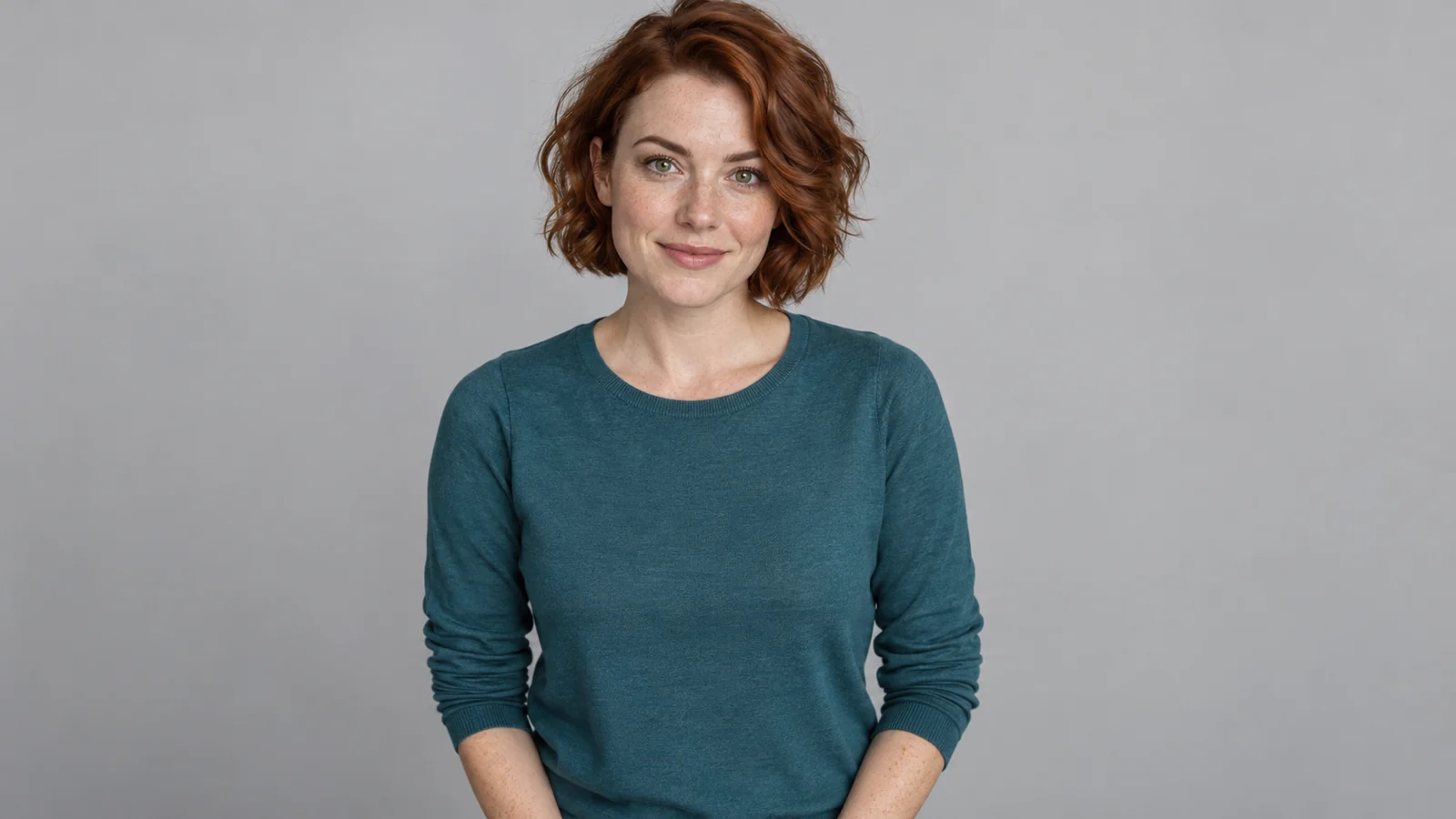
This fictional adult portrait is the input for the recorded example below. A clear face gives the model useful identity detail; it does not guarantee a perfect match. Use your own photo or a photo whose adult subject agreed to the AI edit. Do not use unauthorized public figures or make misleading impersonations.
Choose your photo in the homepage tool. You can select it before signing in; sign-in saves it privately and returns you to the same tool. Confirm the permission checkbox before submission.
2. Review the quote and create your party performance
Buying a pack adds its video generations to your account. Payment alone does not start a video. After checkout, return to the homepage tool, confirm your photo and remaining videos, and submit to start generation.
After signing in, check the selected photo, your remaining video count. Submit once when you are ready. The fixed recipe handles the party setting and gesture timing; there are no prompt, model or reference-video choices to configure.
The reference guides three moments:
- The wave: the lead greets the camera beneath the chandeliers.
- The toast: the lead lifts a silver cup toward the camera.
- The lookout: a hand shades the eyes as the lead searches the room.
This is one actual Wan 2.7 result made by this site from the fictional portrait above. It is not an official music-video clip, a customer testimonial or proof of Pruna output quality. The three gestures are moments in this same video, not three independent examples. Faces, clothing, hands and props can vary between results.
Generation time depends on the provider queue. After your task is accepted, its status and result stay in the homepage tool. Refreshing restores the saved task; do not submit another paid request just because the first is taking time. The User Guide explains saved-task recovery and account records.
3. Review and download your Burning Bridges AI video
Play the entire result before sharing. Look at facial continuity during the wave and the hand-over-eyes moment, the cup grip, extra fingers and changes in clothing. If an AI edit looks misleading or unsuitable, do not publish it as real footage.
Download the MP4 from the same tool or your private asset library. Keep your own copy of videos you want to retain. Your photo and output are private to your account and do not automatically become public examples or share pages.
For TikTok, Instagram Reels or YouTube Shorts, preview the complete clip in the posting app and keep the face, raised cup and searching hand visible. If the app crops the frame or places controls over it, adjust the framing before publishing. The public sample above records the Wan 2.7 landscape recipe; check the live tool for the active recipe and output orientation.
The download has no song. Add music you have permission to use in your editor or posting app; available sounds depend on your account and region. Use the destination platform’s AI disclosure tools and do not imply artist endorsement.
If your Burning Bridges AI video needs attention
- The photo cannot be accepted: check its format and size, then choose a sharper single-person portrait. Do not keep submitting the same unsuitable image.
- The task is pending or being checked: return to the existing task and follow its status. An uncertain submission is not confirmation of failure.
- Generation is confirmed failed: the generation you used is returned. Check available videos and contact support with the task ID if a return is missing. A generation return is separate from a payment refund; see the Refund Policy.
- You want a cash refund or deletion: use Contact Us. The Privacy Policy explains third-party processing and retention. Archiving is not deletion, and no fixed automatic media-deletion period is promised.
Make your own party moment
Return to the homepage and upload your photo. You can watch the sample and prepare a portrait before deciding to use a generation. For saved tasks, billing and account controls, use the Photo and Video Guide.